
Learning objective
Core ICT skills
Everyday Computer Skills
1
2
3
4
5
6
Welcome to Everyday Computer Skills! In this strand, you will master the essential tools you need to use your device confidently, from logging in securely to managing complex files.
Logins & Mouse
Let's start with the absolute basics: powering up, logging in, and navigating your screen with a mouse.
Let's Go!

Routine: See, Think, Wonder
Look closely at this screen. What do you see?
What do you think about it?
What does it make you wonder?
Learn
Your device is your main tool for learning. Knowing how to securely log on to the school network, open your apps from the taskbar, and accurately use your mouse will make every other task much easier.
🎯 Click Me!
Bubbles Popped: 0 / 5
Q
W
E
R
T
Y
U
I
O
P
A
S
D
F
G
H
J
K
L
Enter ↵
Shift ⇧
Z
X
C
V
B
N
M
⌫ Del
Tab ⇥
Spacebar
Try it yourself
Turn on, log in, log off!
🚀 Open a practice space
Or try locally: ⌨️ Explore full Keyboard & Mouse strand →
🌟 Student Project GuideSuccess Criteria & WAGOLL (What A Good One Looks Like)
🎯 Task Success Criteria (Rubric)
Foundation
Turn a device on/off.
Developing
Target icons with a mouse.
Secure (Goal)
Log on to school network.
Mastery
Use a mouse to target/select. Typing: 5 WPM.
👀 What A Good One Looks Like (WAGOLL)
Exemplar Standard
A top-tier student project for Logins & Mouse includes:
- Core Deliverable: Turn on, log in, log off!
- Target Quality: Log on to school network.
- Excellence & Polish: Use a mouse to target/select. Typing: 5 WPM.
📁
Save to Your Website Portfolio:
When you finish creating your project in your software, copy the share link or take a screenshot and publish it onto your student portfolio website!
⭐Self-Assessment: How confident do you feel with this skill?
Reflect
Learning check
Teacher setup, curriculum links and progress descriptors
Spark support
Routine: See, Think, Wonder
Achievement pathway
- Foundation: Turn a device on/off.
- Developing: Target icons with a mouse.
- Secure: Log on to school network.
- Mastering: Use a mouse to target/select. Typing: 5 WPM.
Curriculum links
Curriculum strand: CM.01.B.1.2
Outcome: EDS-O-01 — Basic device operation and access.
PYP: Function · Technology helps us connect and learn.
Learner profile: Inquirer
Competency tags
Gate support
Accessibility alternative:
Teacher override: allow
Locked level
Level 2: Files & Fonts
Complete the previous learning check to unlock this next level.
Files & Fonts
Time to make your work look great and stay organized by managing your files and formatting text.
Learning objective
Learning About: Files. Learning To: Format font. Learning To Be: Communicator.
Let's Go!
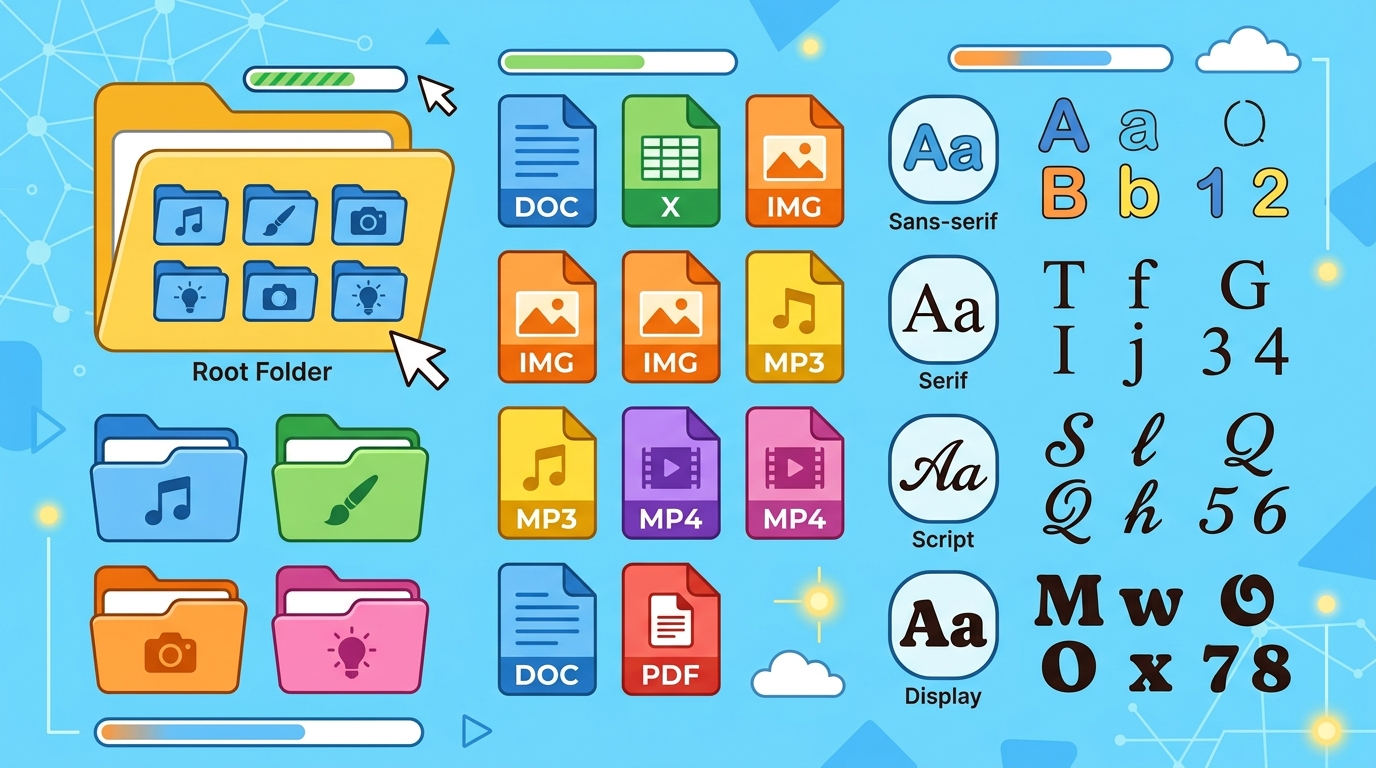
Routine: Zoom In
Look at this small piece of the image. What do you see? As more is revealed, what do you think it will be?
Learn
Knowing exactly where you saved your work is crucial. We will practice saving files to a specific folder so they never get lost. We will also explore how to change font sizes and colors to make your text clear and easy to read.
Mission to the Red Planet 🚀
A Student Research Report by Grade 5 Explorers
Introduction
Knowing exactly where you saved your work is crucial. We will practice saving files to a specific folder so they never get lost. We will also explore how to change font sizes and colors to make your text clear and easy to read.
Key Equipment Checklist
Solar-powered exploratory rover with panoramic cameras
Pressurized spacesuits with oxygen recycling
High-gain radio dish for communicating with Earth ground control
Highlight any part of this document to practice formatting titles, lists, colors, and paragraph styles!
Try it yourself
Create, edit adn save a file.
🚀 Open a practice space
Or try locally: 📝 Explore full Word Processing strand →
🌟 Student Project GuideSuccess Criteria & WAGOLL (What A Good One Looks Like)
🎯 Task Success Criteria (Rubric)
Foundation
Open apps from taskbar.
Developing
Change font size/colour.
Secure (Goal)
Save/open files to a folder.
Mastery
Identify USB/Power cables. Typing: 10 WPM.
👀 What A Good One Looks Like (WAGOLL)
Exemplar Standard
A top-tier student project for Files & Fonts includes:
- Core Deliverable: Create, edit adn save a file.
- Target Quality: Save/open files to a folder.
- Excellence & Polish: Identify USB/Power cables. Typing: 10 WPM.
📁
Save to Your Website Portfolio:
When you finish creating your project in your software, copy the share link or take a screenshot and publish it onto your student portfolio website!
⭐Self-Assessment: How confident do you feel with this skill?
Reflect
Learning check
Teacher setup, curriculum links and progress descriptors
Spark support
Routine: Zoom In
Achievement pathway
- Foundation: Open apps from taskbar.
- Developing: Change font size/colour.
- Secure: Save/open files to a folder.
- Mastering: Identify USB/Power cables. Typing: 10 WPM.
Curriculum links
Curriculum strand: CM.01.B.1.2
Outcome: EDS-O-02 — File saving and text formatting.
PYP: Form · Organization improves how we work and share.
Learner profile: Communicator
Competency tags
Gate support
Accessibility alternative:
Teacher override:
Locked level
Level 3: Navigating Tabs
Complete the previous learning check to unlock this next level.
Navigating Tabs
Learn how to move quickly between browser tabs and use a split screen to work much smarter.
Learning objective
Learning About: Navigation. Learning To: Use split screen. Learning To Be: Thinker.
Let's Go!

Routine: Think, Puzzle, Explore
What do you think you know about multiple tabs?
What puzzles you?
What do you want to explore?
Learn
When you are researching or working on big projects, you will often need more than one window open. Using a split screen and navigating safely between tabs helps you see all your information at the exact same time.
Volcanoes: Earth's Fiery Chimneys!
Melted subterranean rock called magma rises through vents. When it erupts onto the surface, it becomes glowing red lava!
🌋🔥
My Study Notes
Try it yourself
Try it yourself
🚀 Open a practice space
Or try locally: 🪟 Explore Window Management & Split Screen →
🌟 Student Project GuideSuccess Criteria & WAGOLL (What A Good One Looks Like)
🎯 Task Success Criteria (Rubric)
Foundation
Use left/right click.
Developing
Navigate browser tabs.
Secure (Goal)
Organise split-screen view.
Mastery
Save with meaningful names. Typing: 15 WPM.
👀 What A Good One Looks Like (WAGOLL)
Exemplar Standard
A top-tier student project for Navigating Tabs includes:
- Core Deliverable: Try it yourself
- Target Quality: Organise split-screen view.
- Excellence & Polish: Save with meaningful names. Typing: 15 WPM.
📁
Save to Your Website Portfolio:
When you finish creating your project in your software, copy the share link or take a screenshot and publish it onto your student portfolio website!
⭐Self-Assessment: How confident do you feel with this skill?
Reflect
Learning check
Teacher setup, curriculum links and progress descriptors
Spark support
Routine: Think, Puzzle, Explore
Achievement pathway
- Foundation: Use left/right click.
- Developing: Navigate browser tabs.
- Secure: Organise split-screen view.
- Mastering: Save with meaningful names. Typing: 15 WPM.
Curriculum links
Curriculum strand: CM.02.B.1.1
Outcome: EDS-O-03 — Browser navigation and split screen usage.
PYP: Connection · Effective tools help us gather information efficiently.
Learner profile: Thinker
Competency tags
Gate support
Accessibility alternative:
Teacher override:
Locked level
Level 4: Systems & Profiles
Complete the previous learning check to unlock this next level.
Systems & Profiles
Take control of your digital space by managing browser profiles and fixing basic software freezes.
Learning objective
Learning About: Systems. Learning To: Change profiles. Learning To Be: Principled.
Let's Go!
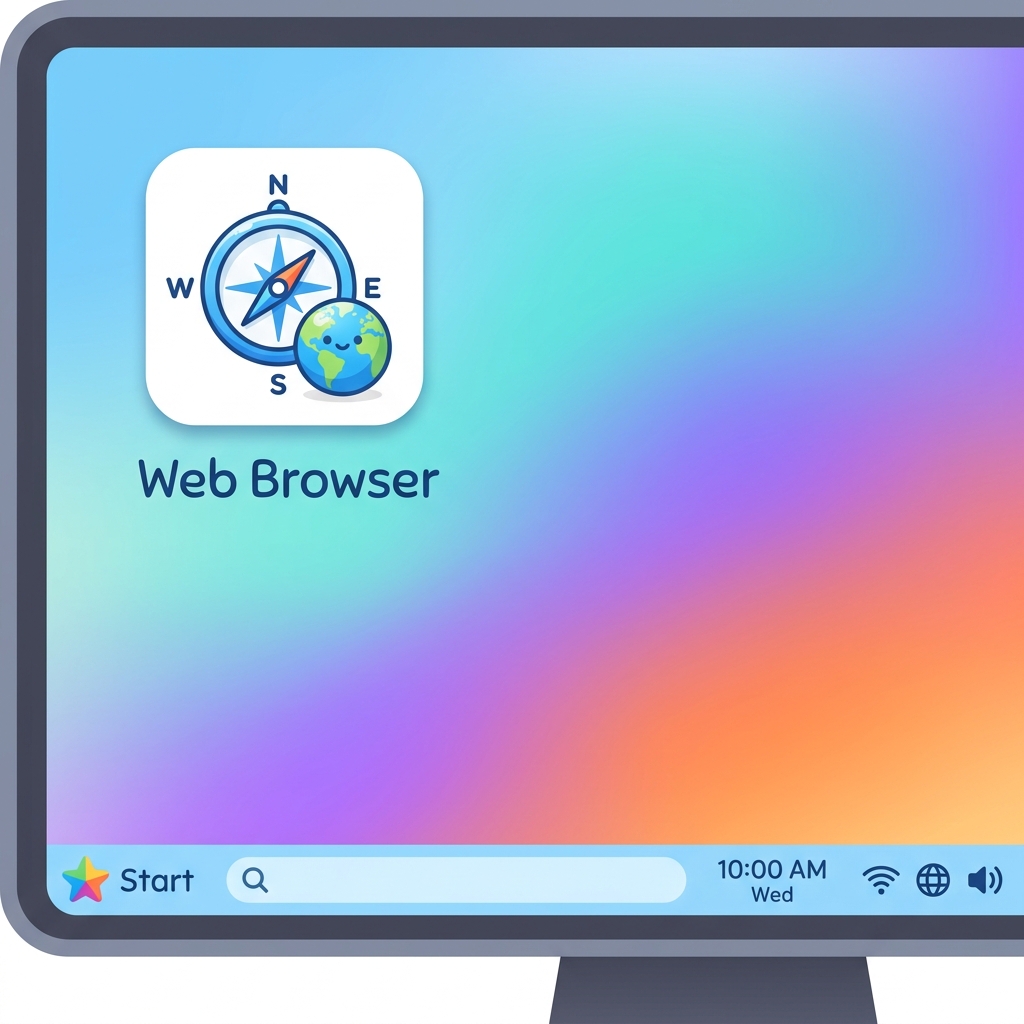
Routine: See, Think, Wonder
Look closely at this browser setup. What do you see? What do you think about it? What does it make you wonder?
Learn
Sharing a device or having multiple accounts can get confusing. Managing your browser profile ensures your bookmarks, passwords, and history stay perfectly separated and secure.
Try it yourself
Check your browser profile.
🚀 Open a practice space
Or try locally: 🔐 Explore full Logging In & Passwords strand →
🌟 Student Project GuideSuccess Criteria & WAGOLL (What A Good One Looks Like)
🎯 Task Success Criteria (Rubric)
Foundation
Manage browser profiles.
Developing
Use Shift/Delete keys.
Secure (Goal)
Copy/paste between docs.
Mastery
Troubleshoot frozen apps. Typing: 20 WPM.
👀 What A Good One Looks Like (WAGOLL)
Exemplar Standard
A top-tier student project for Systems & Profiles includes:
- Core Deliverable: Check your browser profile.
- Target Quality: Copy/paste between docs.
- Excellence & Polish: Troubleshoot frozen apps. Typing: 20 WPM.
📁
Save to Your Website Portfolio:
When you finish creating your project in your software, copy the share link or take a screenshot and publish it onto your student portfolio website!
⭐Self-Assessment: How confident do you feel with this skill?
Reflect
Learning check
Teacher setup, curriculum links and progress descriptors
Spark support
Routine: See, Think, Wonder
Achievement pathway
- Foundation: Manage browser profiles.
- Developing: Use Shift/Delete keys.
- Secure: Copy/paste between docs.
- Mastering: Troubleshoot frozen apps. Typing: 20 WPM.
Curriculum links
Curriculum strand: CM.02.B.1.1
Outcome: EDS-O-04 — Profile management and troubleshooting.
PYP: Responsibility · Digital systems require management and care.
Learner profile: Principled
Competency tags
Gate support
Accessibility alternative:
Teacher override:
Locked level
Level 5: Shortcuts & Mastery
Complete the previous learning check to unlock this next level.
Shortcuts & Mastery
Speed up your workflow using essential keyboard shortcuts for copying, pasting, and undoing mistakes.
Learning objective
Learning About: Mastery. Learning To: Use shortcuts. Learning To Be: Knowledgeable.
Let's Go!
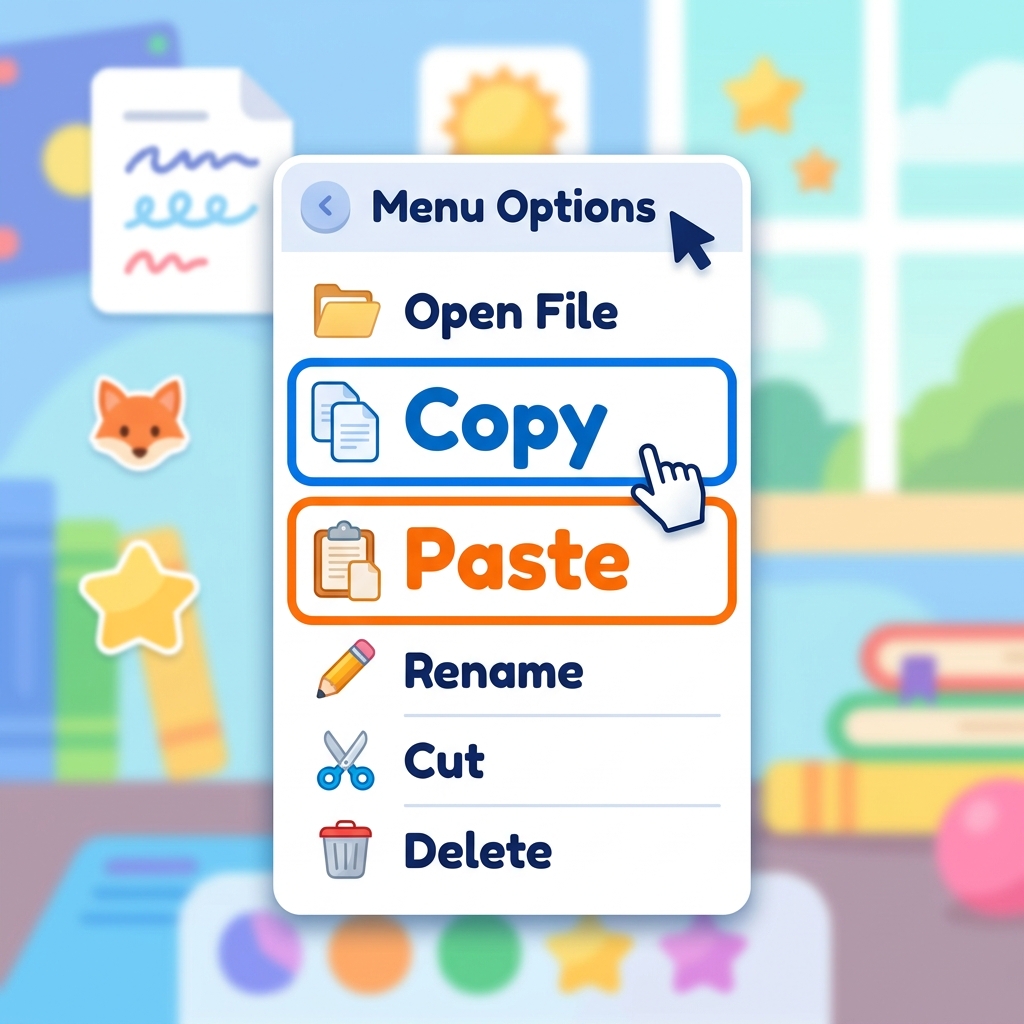
Routine: I used to think...
I used to think the mouse was the fastest tool... Now I think...
Learn
Keyboard shortcuts are secret time-savers! Using shortcuts like Ctrl+C to copy, Ctrl+V to paste, and Ctrl+Z to undo will speed up your writing and editing so you can focus on your ideas, not your typing.
📁 Source Document
➔
📋 Destination Notepad
Try it yourself
Copy, Paste, Undo with the keyboard.
🚀 Open a practice space
Or try locally: ⚡ Explore full Keyboard Shortcuts strand →
🌟 Student Project GuideSuccess Criteria & WAGOLL (What A Good One Looks Like)
🎯 Task Success Criteria (Rubric)
Foundation
Use Ctrl+C/V/Z fluently.
Developing
Mute/unmute audio inputs.
Secure (Goal)
Search system for apps.
Mastery
Use advanced search filters. Typing: 25 WPM.
👀 What A Good One Looks Like (WAGOLL)
Exemplar Standard
A top-tier student project for Shortcuts & Mastery includes:
- Core Deliverable: Copy, Paste, Undo with the keyboard.
- Target Quality: Search system for apps.
- Excellence & Polish: Use advanced search filters. Typing: 25 WPM.
📁
Save to Your Website Portfolio:
When you finish creating your project in your software, copy the share link or take a screenshot and publish it onto your student portfolio website!
⭐Self-Assessment: How confident do you feel with this skill?
Reflect
Learning check
Teacher setup, curriculum links and progress descriptors
Spark support
Routine: I used to think...
Achievement pathway
- Foundation: Use Ctrl+C/V/Z fluently.
- Developing: Mute/unmute audio inputs.
- Secure: Search system for apps.
- Mastering: Use advanced search filters. Typing: 25 WPM.
Curriculum links
Curriculum strand: CM.03.B.1.1
Outcome: EDS-O-05 — Keyboard shortcuts for efficiency.
PYP: Change · Mastering tools increases our efficiency.
Learner profile: Knowledgeable
Competency tags
Gate support
Accessibility alternative:
Teacher override:
Locked level
Level 6: OS & Folders
Complete the previous learning check to unlock this next level.
OS & Folders
Master your operating system by organizing multiple folders and understanding how your system connects.
Learning objective
Learning About: OS. Learning To: Manage folders. Learning To Be: Reflective.
Let's Go!
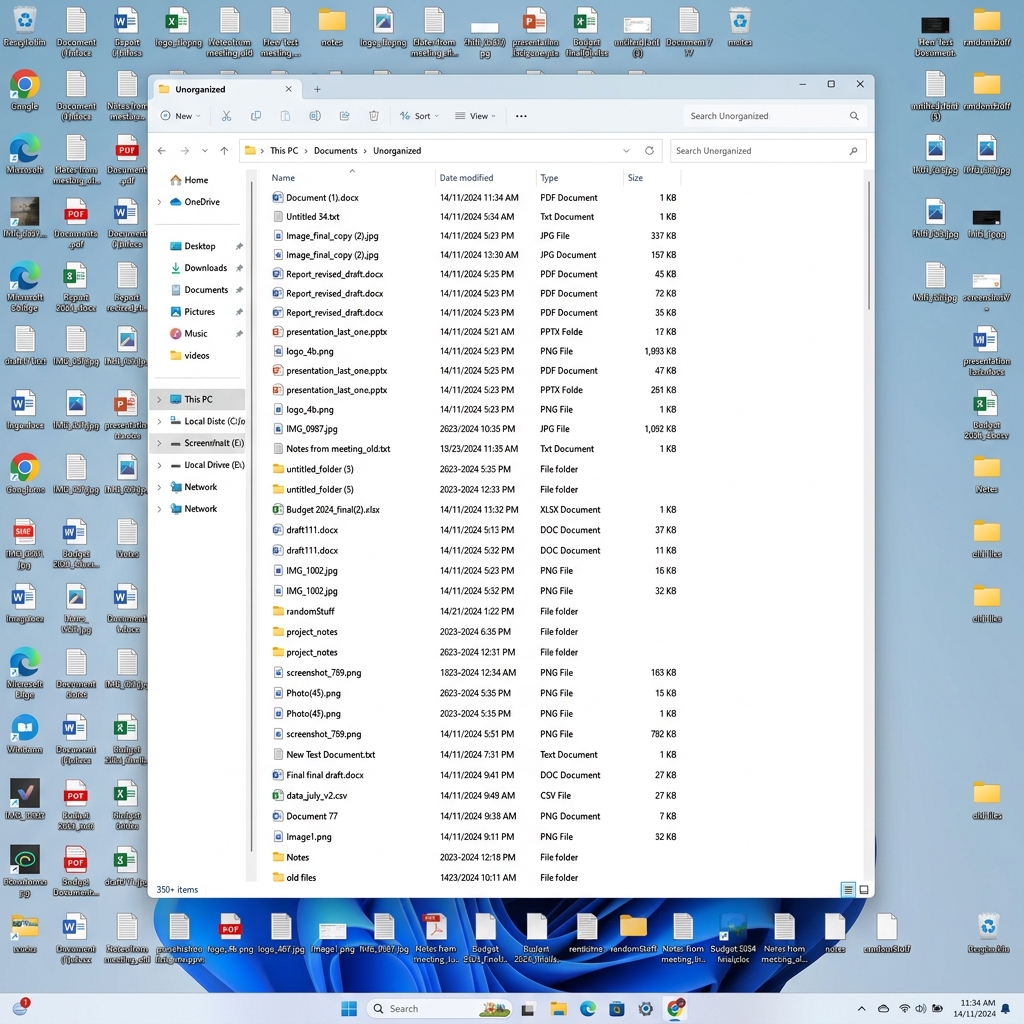
Routine: Step Inside
Imagine taking on the role of a file on this computer. Where do you live? How are you organized?
Learn
Your Operating System (OS) is the brain of your computer. Setting up a highly logical folder structure inside your OS will keep your massive multi-part projects organized, safe, and incredibly easy to find.
Homework.docx
Puppy.jpg
Story_Chapter1.txt
Class_Anthem.mp3
Field_Trip.png
Try it yourself
Create folders in a Tree.
🚀 Open a practice space
Or try locally: 📁 Explore full File Organization strand →
🌟 Student Project GuideSuccess Criteria & WAGOLL (What A Good One Looks Like)
🎯 Task Success Criteria (Rubric)
Foundation
Use Alt+Tab for tasks.
Developing
Explain OS functions.
Secure (Goal)
Logically fix network errors.
Mastery
Manage multi-folder projects. Typing: 30+ WPM.
👀 What A Good One Looks Like (WAGOLL)
Exemplar Standard
A top-tier student project for OS & Folders includes:
- Core Deliverable: Create folders in a Tree.
- Target Quality: Logically fix network errors.
- Excellence & Polish: Manage multi-folder projects. Typing: 30+ WPM.
📁
Save to Your Website Portfolio:
When you finish creating your project in your software, copy the share link or take a screenshot and publish it onto your student portfolio website!
⭐Self-Assessment: How confident do you feel with this skill?
Reflect
Learning check
Teacher setup, curriculum links and progress descriptors
Spark support
Routine: Step Inside
Achievement pathway
- Foundation: Use Alt+Tab for tasks.
- Developing: Explain OS functions.
- Secure: Logically fix network errors.
- Mastering: Manage multi-folder projects. Typing: 30+ WPM.
Curriculum links
Curriculum strand: CM.03.B.1.1
Outcome: EDS-O-06 — OS navigation and advanced folder hierarchy.
PYP: Function · Systems are organized logically to function properly.
Learner profile: Reflective
Competency tags
Gate support
Accessibility alternative:
Teacher override: